00 Setup Raspberry Pi 5!
Here's a complete setup guide for Pi 5:
1. Initial OS Setup
Flash OS
- Download Raspberry Pi Imager Link Here!
- Flash Raspberry Pi OS Lite (64-bit) to microSD
- Enable SSH in imager settings
- Set hostname, username, password, WiFi
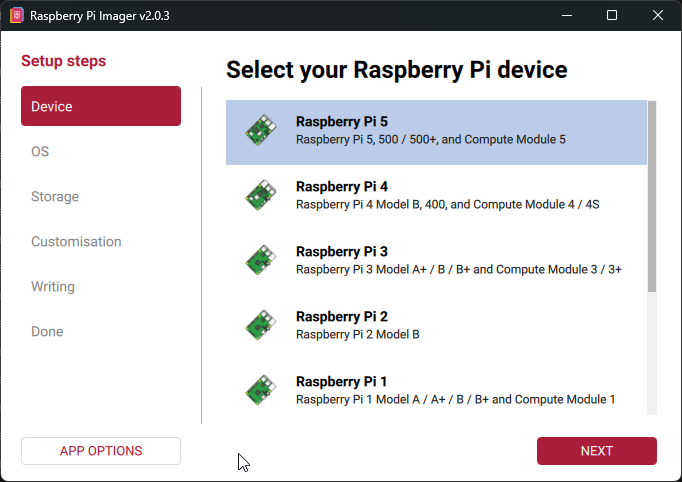
Select the right image according to the device
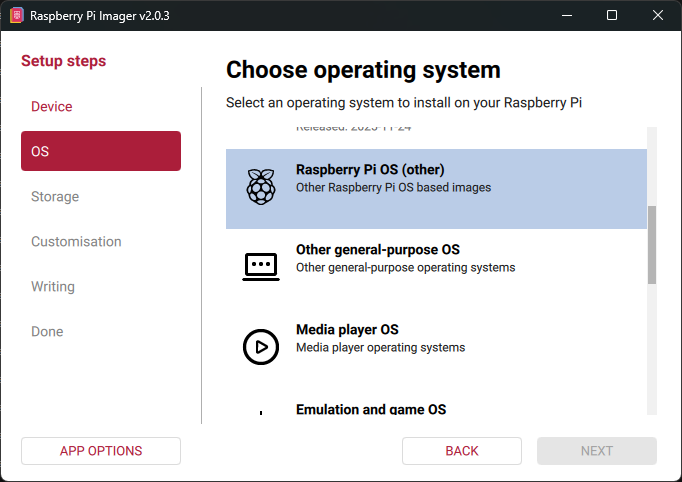
Select
Raspberry Pi OS (other)
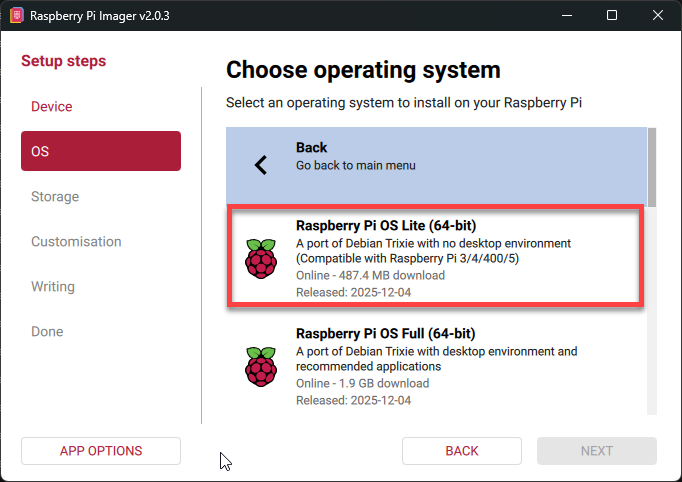
Select
Raspberry Pi OS Lite (64-bit)
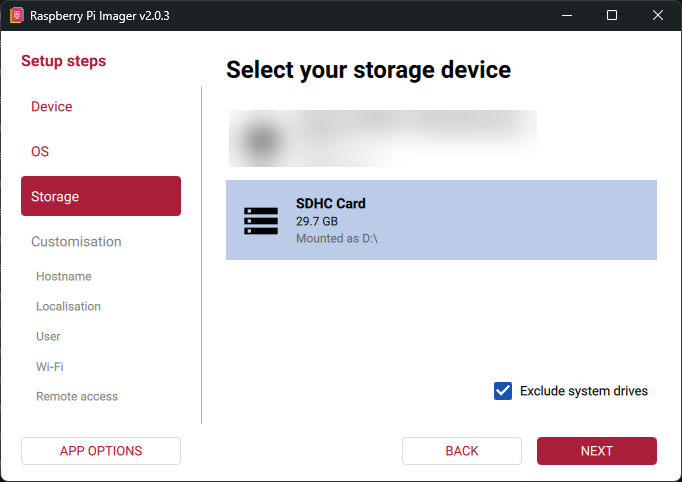
Select Raspberry Pi
SDHC Card
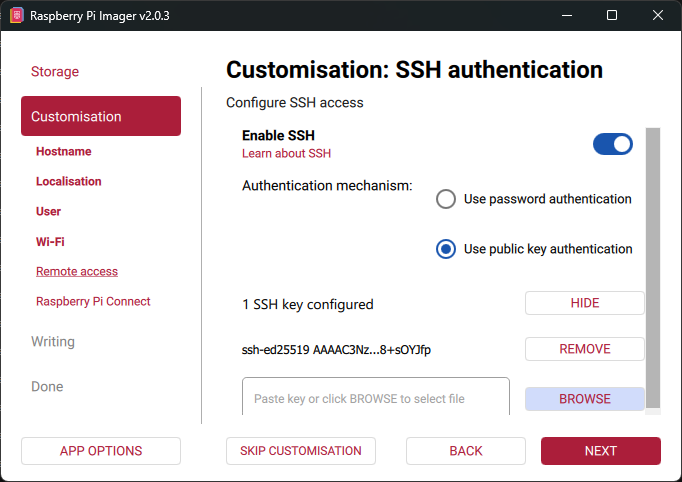
Enable
SSHand add yourPublic Key
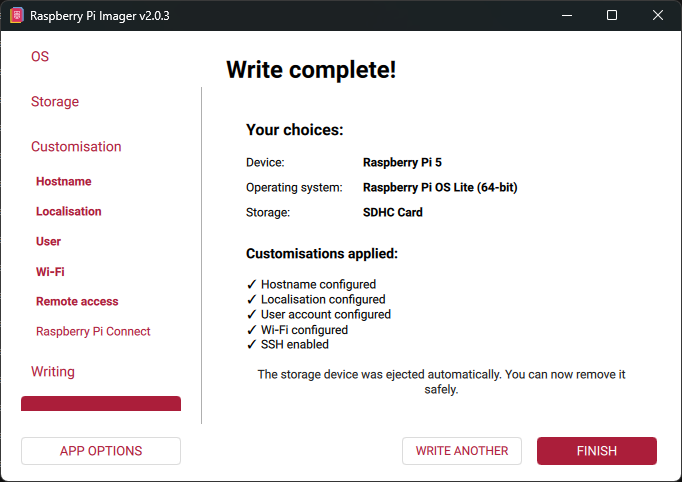
Finish!
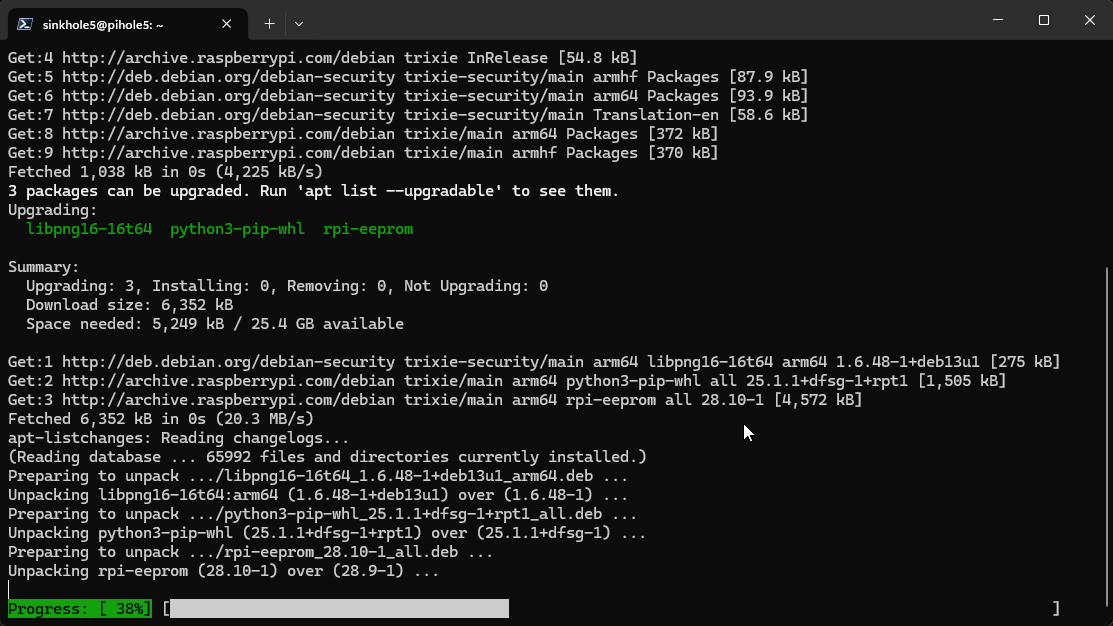
First Boot
ssh your_user@ip-of-your-ssh
# Update system
sudo apt update && sudo apt full-upgrade -y
sudo reboot
Disable WiFi
If you use ethernet cable like me, disable WiFi to prevent potential routing conflicts.
# Disable WiFi permanently
sudo rfkill block wifi
Set Static IP on eth0
# Set static IP on 'eth0'
sudo nano /etc/dhcpcd.conf
Add at the end, accoriding your network:
If you don't know, use the command
ifconfig
interface eth0
static ip_address=192.168.0.48/24
static routers=192.168.0.1
static domain_name_servers=127.0.0.1 1.1.1.1
info
static domain_name_servers=127.0.0.1 1.1.1.1
- This is only fallback during setup
Reserve IP in your router
- Go to your router (192.168.0.1) or (192.168.0.254)
- Reserve
YOUR IPfor MAC:YOUR MAC - Set DHCP range to
192.168.0.50-192.168.0.200(exclude.48)
Configure IPv6
If you have Pv6 connectivity, I would recommend to configure it properly:
sudo nano /etc/dhcpcd.conf
Add this at the end, according your IP:
# Static configuration for eth0
interface eth0
static ip_address=192.168.0.48/24
static ip6_address=2a02:21b4:9cda:100::48/64
static routers=192.168.0.1
static domain_name_servers=127.0.0.1 ::1
2. Security Hardening
Firewall
sudo apt install ufw -y
sudo ufw default deny incoming
sudo ufw default allow outgoing
sudo ufw allow 22/tcp    # SSH
sudo ufw allow 80/tcp    # Pi-hole web
sudo ufw allow 53/tcp    # DNS
sudo ufw allow 53/udp    # DNS
sudo ufw allow 443/tcp   # HTTPS
sudo ufw enable
sudo ufw status verbose
SSH
# Disable password auth for SSH
sudo nano /etc/ssh/sshd_config
Set the following values:
PasswordAuthentication no
PermitRootLogin no
warning
Be sure to have SSH Keys and NOT a password and check your current logged in user, to ensure you have a non-root user with sudo privileges.
whoamigetent group sudo
Fail2Ban
Install fail2ban
sudo apt install fail2ban -y
sudo systemctl enable fail2ban